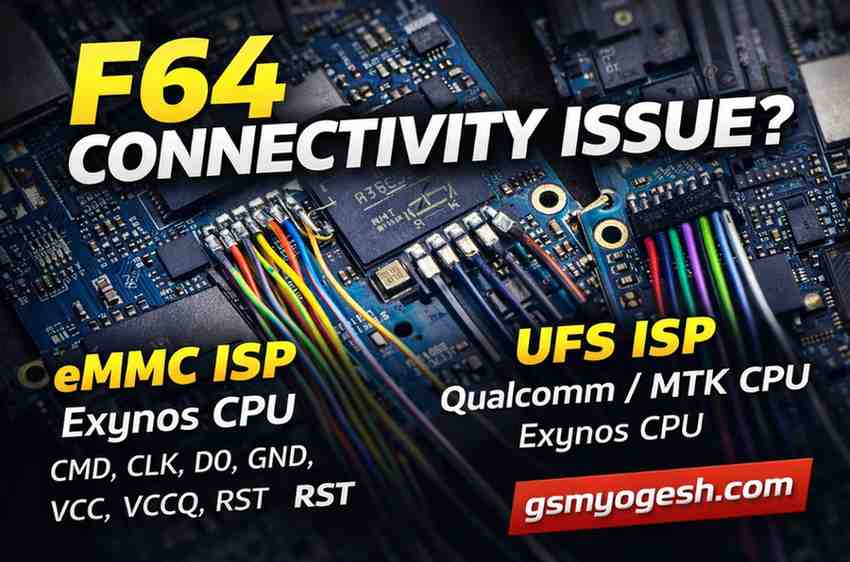
F64 Connectivity Issue? Complete ISP Connection Guide
If your F64 tool is not detecting the device, the problem is usually related to wrong wiring or incorrect voltage settings.
Below is a clear and simple guide to fix F64 connectivity issues for eMMC and UFS ISP connections.
Follow the steps carefully based on the CPU type.
eMMC ISP – Exynos CPU
For Exynos-based devices using eMMC, you must connect all required wires.
Missing even one wire can cause detection failure.
Required connections:
CMD, CLK, D0, GND, VCC, VCCQ, RST
Tool voltage settings:
VCC: 3.0V to 3.3V
VCCQ: 1.8V to 2.3V
Important:
Do not insert the battery.
Do not connect USB cable.
UFS ISP – Qualcomm / MTK CPU
For Qualcomm or MediaTek devices using UFS memory, fewer wires are needed.
Required connections:
TXN, TXP, RXN, RXP, GND
If the device is not detected, connect the RST wire to improve detection.
After wiring is complete, connect the USB cable.
UFS ISP – Exynos CPU
Exynos UFS devices require an additional step during connection.
Required connections:
TXN, TXP, RXN, RXP, GND, RST
If needed, short the Power Key line, then connect USB.
If the device is still not detected, also connect:
VCC and VCCQ2
After connecting these, press the power button once.
Important Notes (Must Read)
If VCC and VCCQ2 are connected, do not insert the battery.
Also, do not connect USB at the same time unless instructed.
For UFS 2.2 and below:
Set VCC between 2.8V and 3.0V
For UFS 3.0 and above:
Set VCC between 2.5V and 2.6V
Final Words
Most F64 connectivity issues are caused by missing wires or wrong voltage values.
Double-check wiring, CPU type, and voltage before retrying.
Correct setup will help the tool detect the device without errors.