Time for a Digital Tidy-Up! Saying Goodbye to Shotcut and Scribus on Your Mac
Hey there, Mac user! Ever felt like your computer is getting a bit full, or maybe you're just moving on to new software? It happens to all of us! Today, we&re going to talk about how to properly remove two popular free programs, Shotcut and Scribus, from your Mac. Don't worry, it's easier than you think!
What Are Shotcut and Scribus Anyway?
Let's quickly chat about these two fantastic tools. Maybe you've used them, maybe you're just curious!
- Shotcut: Your Free Video Helper
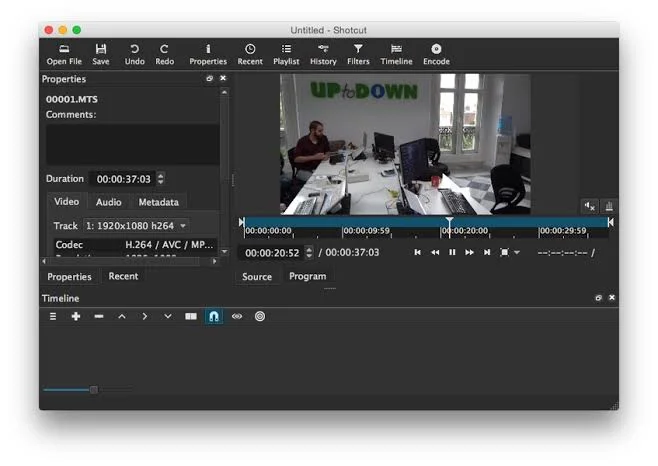
Imagine you want to make a cool video for your family, friends, or even for your social media. That's where Shotcut comes in! It's a free video editor that lets you cut clips, add music, text, and special effects. It's a wonderful tool for beginners and people who don't want to spend money on fancy video editing software. It's been around for a while, constantly getting better, helping folks create videos without a big price tag. - Scribus: Your Free Design Friend
Now, let's talk about Scribus. Have you ever wanted to design your own flyer, a brochure, a newsletter, or even a simple book? Scribus is like a free version of professional design software (think Adobe InDesign, but without the cost!). It's super helpful for creating things that look professional and are ready for printing. It's an open-source project, meaning many people work on it to make it better for everyone.
Both Shotcut and Scribus are amazing because they give everyone access to powerful creative tools without having to pay. But sometimes, even the best tools need to be put away.
Why Uninstall Them Now?
Perhaps you’ve been using Shotcut for a while but now you’ve found another video editor you like more. Or maybe Scribus helped you with a project, but you don’t need it anymore. A common reason many people want to uninstall software these days is simply to free up space on their Mac. Our hard drives fill up quickly with photos, videos, and documents, and old software can take up quite a bit of room!
Another big reason is to keep your Mac running smoothly. When you uninstall programs properly, you not only reclaim space but also help prevent your system from getting cluttered with unnecessary files that can sometimes slow things down. It’s like cleaning out a closet; you feel better and can find things easier afterward!
Your Simple Guide to Uninstalling Shotcut and Scribus
Here’s how to give your Mac a good spring clean and completely remove these programs. We’ll start with Shotcut, then move to Scribus. The steps are quite similar!
Uninstalling Shotcut
Follow these friendly steps to say goodbye to Shotcut:
- Step 1: Quit Shotcut First!
Before you do anything else, make sure Shotcut is completely closed. If it's still running, it might not uninstall properly. Go to the Shotcut menu at the top of your screen and choose "Quit Shotcut" or pressCommand (⌘) + Q. - Step 2: Drag to the Trash Can
Open your "Applications" folder. You can do this by clicking on "Finder" (the happy face icon in your Dock), then selecting "Applications" from the sidebar. Find the Shotcut app icon. Click on it and drag it straight into the "Trash" icon in your Dock. - Step 3: Hunt for Leftover Files (The Important Part!)
Just dragging to the Trash doesn't always get everything. Software often leaves behind little bits and pieces, like settings or temporary files, in hidden folders. This is where a lot of people miss a step!To find these, click on your "Finder" again. Then, in the top menu bar, click "Go" and then "Go to Folder…" (or press
Shift + Command (⌘) + G).Type in
~/Library/Application Support/and hit Enter. Look for any folders named "Shotcut" or anything similar. Drag those to the Trash.Repeat this for these other locations, looking for Shotcut-related folders or files:
~/Library/Caches/~/Library/Preferences/(look for files starting with "org.shotcut…" or "com.shotcut…" followed by ".plist")~/Library/Logs/
A little tip: Some of these files are tiny, but over time, they can add up!
- Step 4: Empty Your Trash
Right-click (or Control-click) on the "Trash" icon in your Dock and choose "Empty Trash." Confirm when asked. This truly gets rid of the files.
Uninstalling Scribus
Removing Scribus is very similar to Shotcut:
- Step 1: Quit Scribus Completely
Just like with Shotcut, make sure Scribus is not running. Go to the Scribus menu at the top and choose "Quit Scribus" or pressCommand (⌘) + Q. - Step 2: Drag to the Trash Can
Open your "Applications" folder. Find the Scribus app icon and drag it to the "Trash" in your Dock. - Step 3: Find Those Extra Files
Again, we need to dig a little deeper. Use the "Go to Folder…" trick (Shift + Command (⌘) + G) in Finder.Check these locations for folders or files related to "Scribus" and drag them to the Trash:
~/Library/Application Support/(look for a folder named "Scribus")~/Library/Caches/~/Library/Preferences/(look for files like "scribus.plist" or starting with "org.scribus…")~/Library/Logs/
- Step 4: Empty Your Trash
Don't forget this final step! Right-click the "Trash" and select "Empty Trash."
Once you’ve done all these steps for both programs, it’s often a good idea to restart your Mac. This helps it clear out any last bits of memory and refresh everything.
The Benefits of a Proper Uninstall
You might be thinking, "Is all this effort really worth it?" And the answer is a big YES! Here’s why:
- More Space: The most obvious benefit! You get back valuable storage space on your Mac for new photos, videos, or other essential files.
- Faster Mac: A cleaner system means less "junk" for your Mac to keep track of, which can lead to a snappier, more responsive computer.
- No Conflicts: Leftover files from old programs can sometimes cause problems or conflicts with new software you install. A clean uninstall prevents these headaches.
- Cleaner System: It just feels good to have a tidy digital space! Like a clean desk helps you work better, a clean Mac runs better.
Frequently Asked Questions (FAQs)
- Q1: Why can't I just drag the app to the Trash and be done with it?
A: While dragging the app to the Trash removes the main program, it often leaves behind "support files" like settings, caches, and preferences. These don’t take up huge amounts of space individually, but they can add up over time and sometimes cause issues. A full uninstall ensures a truly clean slate. - Q2: I can’t find the "Library" folder! Where is it?
A: The "Library" folder is usually hidden to prevent accidental deletion of important system files. The easiest way to get to it is by clicking "Go" in the Finder menu bar, then holding down the "Option" key on your keyboard. The "Library" option will magically appear in the menu! Or, use the "Go to Folder…" method mentioned above (Shift + Command (⌘) + G). - Q3: Is there a special app that can uninstall software for me?
A: Yes, there are apps like CleanMyMac X or AppCleaner that can help automate this process, finding all related files for you. They can be very handy if you frequently install and uninstall programs, but you can definitely do it manually with the steps above! - Q4: What if I want to install Shotcut or Scribus again later?
A: No problem at all! A proper uninstall simply removes the program and its settings. If you decide you need them again, just head back to their official websites and download the latest version to reinstall them fresh. - Q5: Will uninstalling these programs delete my video projects or design files?
A: Absolutely not! Uninstalling the software itself will not touch your personal projects (like the actual video files you edited in Shotcut or the design documents you created in Scribus). Those files are saved separately wherever you put them on your Mac, usually in your Documents, Videos, or Photos folders.