Find Hidden Fastboot Commands Easily with Fastboot Command Extractor
If you have ever tried to repair or unlock an Android phone, you may have heard about Fastboot mode. Fastboot is a special mode inside Android devices. It allows you to send commands from your computer to your phone using a USB cable.
Many people use Fastboot to unlock the bootloader, flash files, or fix software problems. It is powerful and useful. But there is one big issue. Some important OEM commands are hidden inside firmware files. These commands are not shown openly, and finding them used to be very difficult.
What Is Fastboot in Simple Words?
Fastboot is like a bridge between your computer and your phone. When the phone is in Fastboot mode, you can control certain system parts from your PC.
People mostly use Fastboot to:
- Unlock bootloader
- Flash system or boot files
- Check device information
- Fix some software errors
Over time, phone brands added extra hidden commands for internal testing and repair work. These are called OEM commands. They are stored inside firmware files such as .img, .bin, and .elf.
The problem is that these files are large and messy. Opening them normally does not help. It looks confusing.
What Is Fastboot Command Extractor?
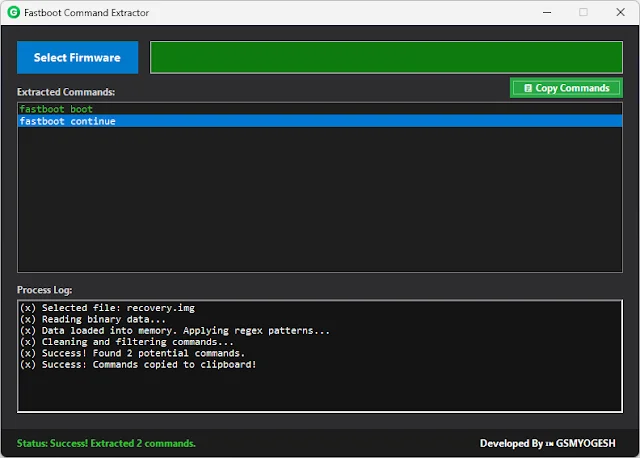
Fastboot Command Extractor is a simple Windows tool created by GSMYOGESH. It is made to scan firmware files and find hidden Fastboot OEM commands quickly.
You do not need technical knowledge. You do not need to type complicated commands. The tool works with simple clicks.
It reads the firmware file and shows all hidden commands in a clean list. It does not change anything inside the file.
Real-Life Example
Think about your firmware file like a big storage box.
From outside, it looks closed and simple. But inside, there are many small items hidden in different corners.
The Fastboot Command Extractor opens that box and shows you what is hidden inside. It does not remove anything. It only displays the hidden parts clearly.
What Is New in the Latest Version?
The latest Windows version is designed for easy use. It includes:
- Clean dark theme
- Simple and clear layout
- Fast scanning speed
- Progress bar display
- One-click copy option
- Works fully offline
You just install the app and start using it. No extra software is required.
How to Use Fastboot Command Extractor
Step 1: Install and open the tool on your Windows computer.
Step 2: Click on the “Select Firmware” button.
Step 3: Choose a firmware file like boot.img, abl.elf, or any .bin file.
Step 4: Wait for the tool to scan the file. You will see a progress bar.
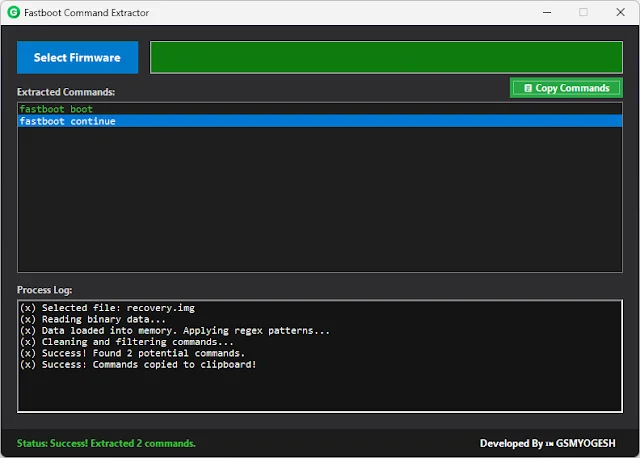
Step 5: After scanning, hidden Fastboot OEM commands will appear on the screen.
Step 6: Click “Copy Commands” and save them in a text file.
The whole process takes only a few seconds.
Advantages of Using This Tool
- No programming knowledge needed
- Saves time
- Safe to use
- Works without internet
- Beginner friendly design
It only reads files stored on your computer. It does not connect to your phone or modify any data.
Who Can Use This Tool?
- Mobile repair technicians
- Android enthusiasts
- People who unlock and flash phones
- Beginners learning Fastboot
If you often work with firmware files, this tool can make your job much easier.
Frequently Asked Questions
1. Do I need coding skills?
No. You only need to select a file and click a button.
2. Does it unlock my phone automatically?
No. It only shows hidden commands. You must use them manually in Fastboot mode.
3. Is it safe for my firmware file?
Yes. It only reads the file and does not change anything.
4. Does it need internet?
No. It works completely offline.
5. Is it free?
Yes. It is created to help the Android repair community.
Download Link
https://www.mediafire.com/file/dry7fbg8qkhqimc/Release.zip/file
Final Thoughts
Finding hidden Fastboot commands used to be hard and confusing. Now it is simple and quick.
With Fastboot Command Extractor, you can scan firmware files and see hidden commands easily. It saves time and makes the process stress free.
If you regularly work with Android devices, this tool can be very helpful for you.