
That’s why I am excited to introduce the Smart Mobile Repair Tool 2025 – a modern, easy‑to‑use, and fully automated solution designed to make your repair work faster, safer, and more professional. This article will explain everything about the tool, its real‑life benefits, key features, usage instructions, and why it’s a must‑have for every technician in 2025.
Why Technicians Need This Smart Mobile Repair Tool
- A customer walks in with a Samsung phone full of unwanted apps (bloatware). Removing them manually can take hours. With this tool, you can scan and uninstall them in just one click.
- Another customer wants to replace the default “Samsung” boot logo with their shop’s branding or a custom image. Doing this manually requires complex commands and risks bricking the phone. With this tool, it’s automatic and safe.
- Firmware modification is often a nightmare for beginners. Extracting
.tar.md5files, decompressing.lz4, and repacking them correctly is time‑consuming. This tool simplifies the entire process with easy buttons.
In short, this tool saves time, effort, and stress, while giving your customers a professional experience.
Also – Android Device Manager By GSMYOGESH
Key Features of Smart Mobile Repair Tool 2025
Here’s what makes this tool stand out:
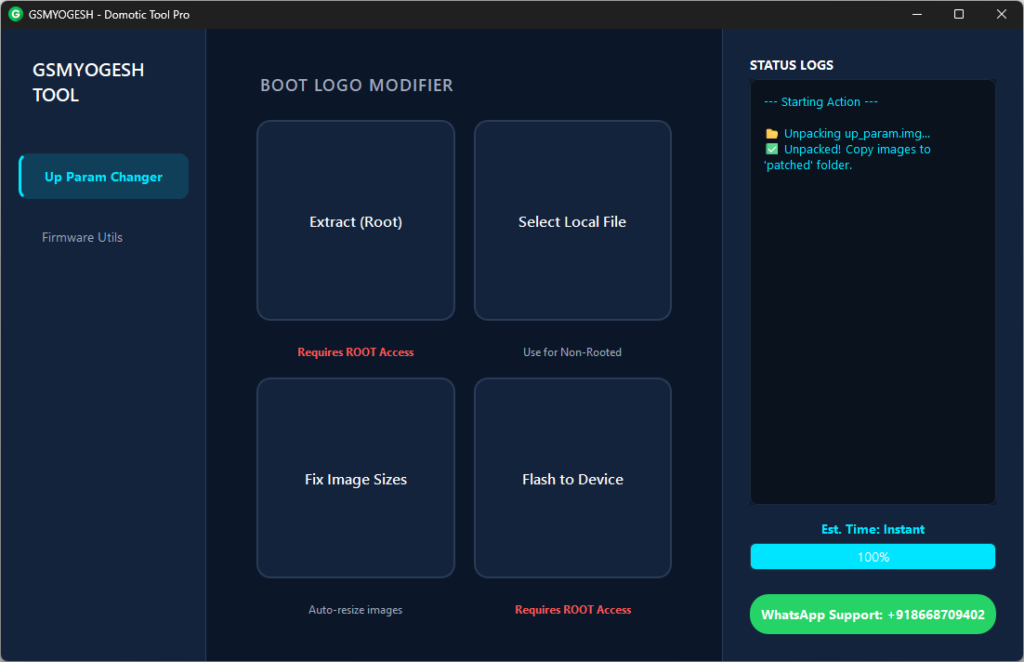
🔧 Boot Logo Modifier
- Extract up_param (boot logo file) directly from the device (root required).
- Support for local firmware files if you already have stock ROM.
- Auto Fix Image Size – prevents bricking by resizing custom logos automatically.
- One‑click flash to device with instant reboot.
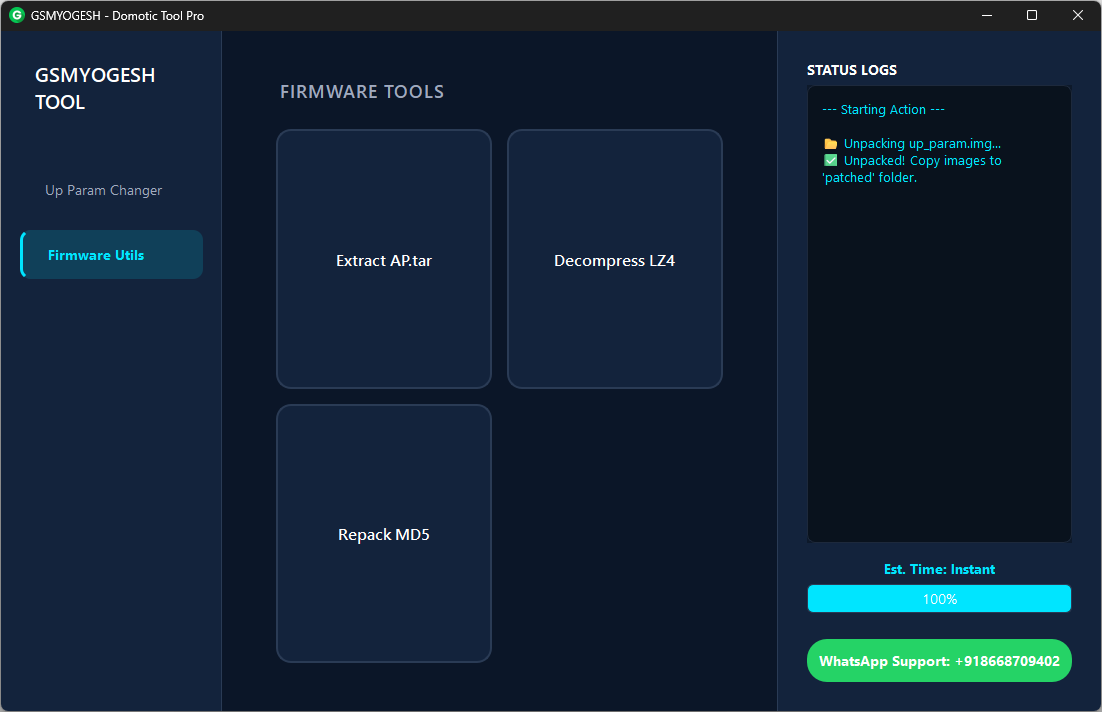
📂 Firmware Utilities
- Extract AP.tar – open Samsung official firmware files easily.
- LZ4 Decompressor – convert
.lz4files into.imginstantly. - Repack MD5 – rebuild modified files into flashable
.tar.md5for Odin.
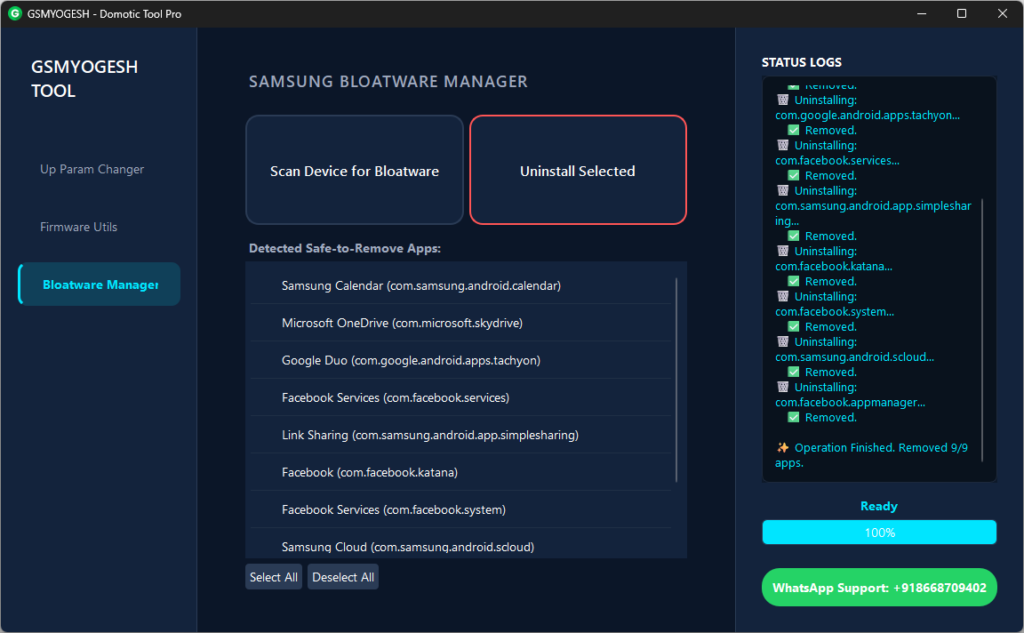
🗑️ Bloatware Manager
- Scan connected devices for “safe to remove” apps.
- Select multiple apps and uninstall them in one go.
- Built‑in safe list ensures only useless apps are removed, not critical system files.
🎨 Modern Design
- Beautiful Dark Mode (Domotic Theme) for comfortable use.
- Live status logs so you can see exactly what’s happening.
- Integrated WhatsApp Support button for instant help.
Step‑by‑Step Guide: How to Use the Smart Mobile Repair Tool
1. Changing Boot Logo (Root Needed)
- Connect your phone via USB.
- Open the tool and go to “Up Param Changer” tab.
- Click “Extract (Root)” and grant permission on your phone.
- Place your custom image (
logo.jpg) inside thepatchedfolder. - Click “Fix Image Sizes”.
- Finally, click “Flash to Device”. Your phone reboots with the new logo.
2. Modifying Firmware
- Go to “Firmware Utils” tab.
- Select your Samsung flash file (
AP_xxxxx.tar.md5). - Extract AP.tar and decompress
.lz4files if needed. - After modifications, click “Repack MD5” to create a flashable file.
3. Removing Bloatware
- Enable USB Debugging on your phone.
- Go to “Bloatware Manager” tab.
- Click “Scan Device” to list useless apps.
- Select apps and click “Uninstall Selected”. Done!
Important Notes Smart Mobile Repair Tool
- Root access is required for Extract from Device and Flash functions.
- If your phone is not rooted, use the Local File option to modify stock firmware.
- Always enable USB Debugging before connecting.
Why Choose GSMYOGESH Tools?
Unlike other complicated software, GSMYOGESH tools are designed with technicians in mind:
- No coding required – everything is button‑based.
- Safe and tested – prevents accidental bricking.
- Community support – direct WhatsApp help available.
- Free download – accessible to everyone.
This makes it perfect for both beginners and experienced repair experts.
Download Link Smart Mobile Repair Tool
MediaFire – https://www.mediafire.com/file/652edloq7dapevl/GSMYOGESH_Domotic_Tool_Pro.rar/file
Google Drive – https://drive.google.com/file/d/1TVFNwNkBaxGCMbBjYsVNb73j6-5CL48j/view?usp=sharing