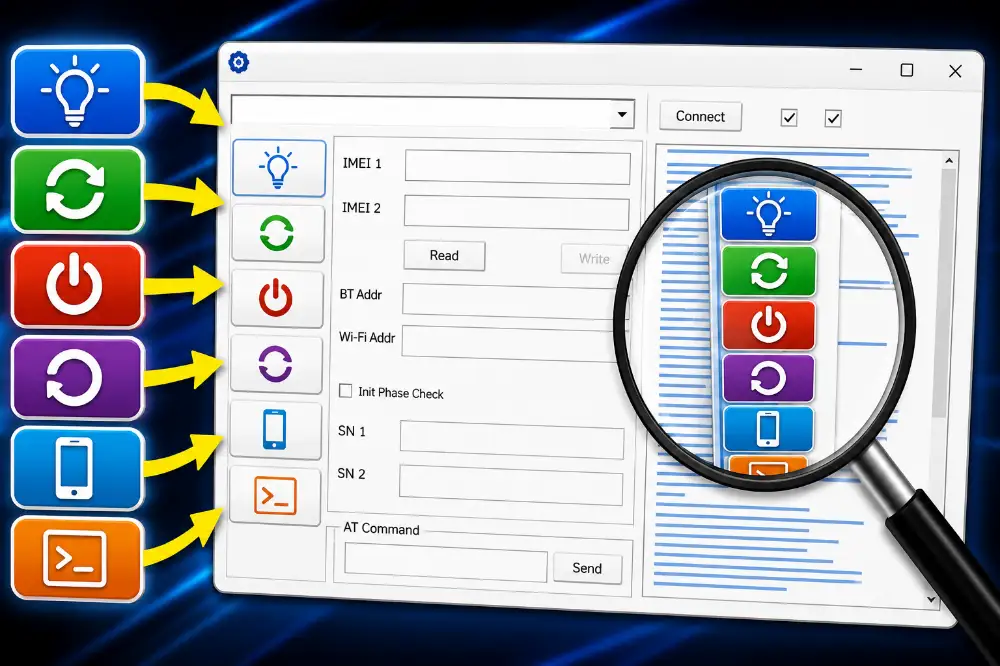
Extra-Tools SPD Diag Tool v1.0 Free Download | Read IMEI, Factory Reset, AT Command Tool
Extra-Tools SPD Diag Tool v1.0 is a free and lightweight Windows tool made for Spreadtrum and some MediaTek Android devices. This tool is mainly useful for mobile repairing work like reading IMEI, sending AT commands, rebooting devices, factory reset, power off, and turning on device backlight. The software is portable, simple to use, and works offline without activation.
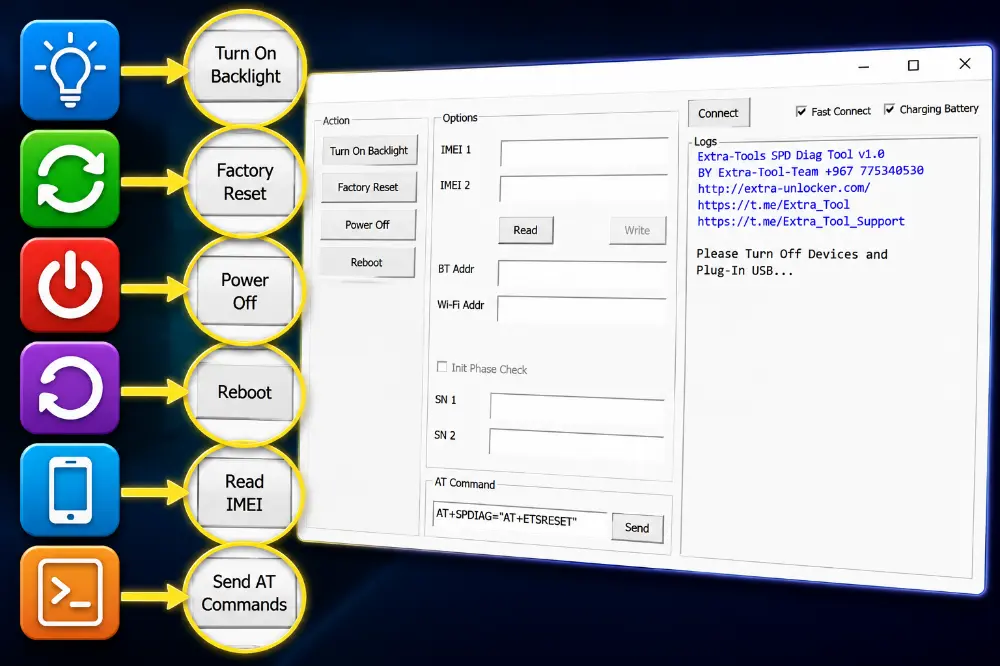
Many mobile technicians need small tools for quick repair work because large flashing tools take too much time. This SPD Diag Tool helps in simple jobs where users only need basic repair options. The interface is clean and easy, so even beginners can understand the functions without confusion.
I personally tested this tool inside my repair shop on different SPD devices. One customer came with a phone that had no display light after flashing firmware. Another customer had missing VoLTE service after software repair. This tool helped me fix both issues easily using the backlight option and AT commands. Because of this, I always keep this tool inside my repair toolkit.
Why This Tool is Useful
Sometimes Android phones lose network settings after flashing or formatting. In many cases VoLTE stops working, the display light becomes black, or the device gets stuck. Using this tool, technicians can quickly send commands and repair some common software problems without using expensive professional tools.
The tool also supports sending custom AT commands. This is very helpful for IMS and VoLTE repair work on supported devices. Users can directly paste commands and send them to the device from the software window.
Main Features of Extra-Tools SPD Diag Tool v1.0
- Free offline repair tool
- Portable software without installation
- Simple and beginner-friendly interface
- Supports SPD Diag connection
- Turn ON device backlight option
- Factory reset support
- Power OFF device directly
- One-click reboot function
- Read IMEI information
- Read device information
- Send custom AT commands
- Useful for IMS and VoLTE fixing
- Fast device connection support
- Battery charging support option
- Works on Windows computers
Functions Available Inside the Tool
Turn On Backlight
This option is useful when the phone display becomes dark after flashing firmware or software repair. In some SPD phones the display works but the light does not turn on. Using this option can fix the problem quickly.
Factory Reset
The factory reset option removes user data and restores the phone to default settings. It is useful when the device is locked, slow, or stuck.
Power Off
This function shuts down the device directly from the software without pressing phone buttons.
Reboot
The reboot function restarts the connected phone safely after software changes or command operations.
Read IMEI
This option helps users read and check the IMEI information of the connected device.
AT Command Support
Users can manually send commands for network settings, IMS settings, VoLTE enable work, and other software configurations.
Latest Update Information
Extra-Tools SPD Diag Tool v1.0 comes with important basic repair features for Android service work. The software focuses on fast and simple operations instead of heavy flashing features. The developer also added support for sending custom commands directly from the tool window.
- Added IMEI read support
- Added reboot and power OFF options
- Added AT command sending feature
- Improved SPD connection speed
- Added backlight repair option
- Better support for Android devices
- Improved tool stability
Personally Tested Repair Experience
Last week one customer came with a Spreadtrum phone after local flashing work. The phone was turning ON but the display light was not working properly. I connected the phone in Diag mode and used the “Turn On Backlight” option from this tool. Within seconds the display light started working normally again.
Another customer had a Jio SIM issue where VoLTE was completely missing after firmware flashing. Calls were switching to 2G and IMS registration was not active. I connected the phone using Diag mode and sent IMS related AT commands using this tool. After rebooting the phone, VoLTE icon started showing again.
Because the tool is small and portable, it becomes very useful for quick repair jobs in daily mobile service work.
Supported VoLTE and IMS AT Commands
Below are some useful and tested AT commands used for IMS and VoLTE related settings on supported MediaTek devices. These commands may help after flashing firmware or software repairing work.
AT+EPCT=0,0
AT+ECFGGET="sdm_profile_prefer_sms_over_sgs_to_ims"
AT+ESBP=7,"SBP_MP_LTE_DOWNLINK_LAA_r13"
AT+EIWLCFGSET="wans_op_id","16386"
AT+ECFGSET="operator_code","16386"
AT+ECFGSET="voice_support","1"
AT+ECFGSET="video_over_ps_support","1"
AT+ECFGSET="sms_support","1"
AT+ECFGSET="ims_signaling_qci","5"
AT+ECFGSET="UA_call_precondition","0"
AT+ECFGSET="mtk_ct_volte_support","1"
AT+ERAT=6
AT+PSBEARER=1
AT+ESSP=1
AT+CGDCONT=1,"IP","ims"
AT+ESIMS=1
AT+EIMSPDN="onoff",1
AT+EIMSESS=1
AT+EIAREG=1
AT+CIREG=2
AT+EVOCD=1
AT+ESSP=1
How to Use Extra-Tools SPD Diag Tool v1.0
- Download the tool ZIP file from the download section.
- Extract the ZIP file using WinRAR or 7-Zip software.
- Open the extracted folder.
- Run the file named Extra-Tools SPD Diag Tool v1.0.exe.
- Now turn OFF the phone.
- Connect the phone using a USB cable.
- Wait for the SPD Diag port connection.
- Select the function you want to use.
-
For example:
- Click “Turn On Backlight” for display light fixing.
- Click “Factory Reset” to wipe phone data.
- Click “Read” to check IMEI information.
- Paste AT commands inside the command box.
- Press “Send” to execute AT commands.
- Use “Reboot” after completing work.
- Disconnect the phone safely after work is complete.
Tool Information
Tool Name: Extra-Tools SPD Diag Tool
Version: v1.0
File Type: Portable
Price: Free
Platform: Windows
Supported Devices: SPD and Some MTK Phones
Internet Required: No
Developer: Extra-Tool-Team
Password: 1234
Advantages of Using This Tool
- Very small and lightweight software
- No installation needed
- Works offline
- Easy for beginners
- Useful for daily repair jobs
- Fast command execution
- Simple clean interface
- Helpful for VoLTE fixing
- Saves technician time
- Good for mobile repair shops
Download Extra-Tools SPD Diag Tool v1.0
If you repair Android phones or do software work regularly, this tool can become very useful in your collection. It is simple, lightweight, and helps with quick repair work without using heavy software.
Download Extra-Tools SPD Diag Tool v1.0
Frequently Asked Questions (FAQs)
1. Is Extra-Tools SPD Diag Tool free?
Yes, the tool is completely free and works offline.
2. Can I use this tool for VoLTE fixing?
Yes, the tool supports AT commands which can help in IMS and VoLTE related repair work.
3. Does this tool support all Android phones?
No, the tool mainly supports Spreadtrum devices and some MediaTek functions.
4. Do I need installation before using this tool?
No, it is a portable software. Just extract and run the EXE file.
5. Is this tool safe for beginners?
Yes, the interface is simple. But users should still use commands carefully because wrong settings can create software problems.